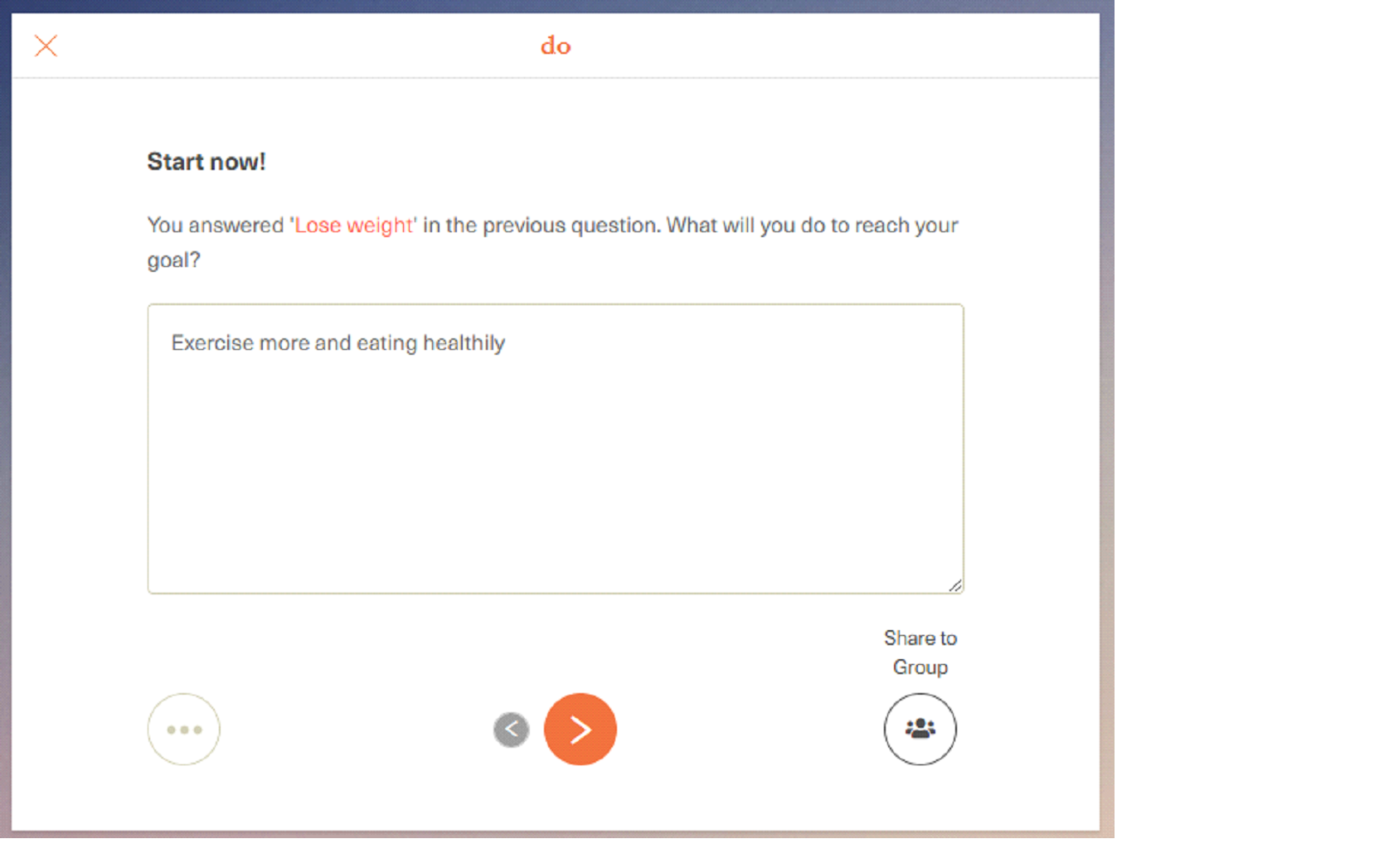
The 'copy user answer' feature is a powerful feature that Gnowbe offers its curators. This is a great way to personalize a learner's learning experience on Gnowbe. This is also a great way to reinforce learning and drive behavior change.
Listed below are a few example scenarios, where this feature is really useful -
- If a user makes a commitment in the early part of the program, this feature can help the user to remind of that commitment in the later part, and do a self-check.
- If a user is working to build a certain knowledge and skill, then this feature can be used to easily drive improvement by comparing the previous response and improving it.
- This is also a great way to drive mindset shifts (this is what you thought about this topic earlier, what are your thoughts now?)
Important note: Copy user answer feature can only copy a user's answer from an open-ended question (action type 'Question & Answer'). Other action types currently don't support this feature.
How do I use the “Copy User Answer” function?
Step 1: In edit mode, go to the session view, where you see all the actions. Hover your mouse over the question & answer action that you want to copy the answer from. Click on the drop-down menu (yellow down-pointing arrow on the top right) of the action and select “Copy User Answer”.
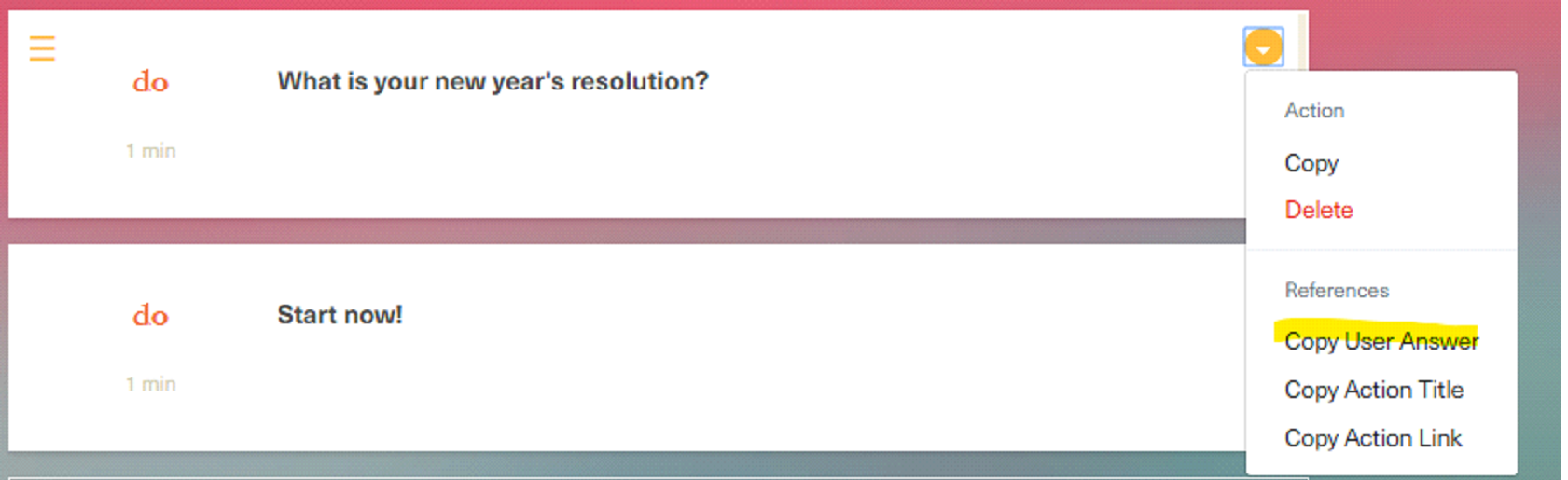
Doing this will copy the unique code of this action to the clipboard.
Step 2: Paste the code at the desired location
This code can be pasted in any action type text, multiple-choice, question & answer etc.
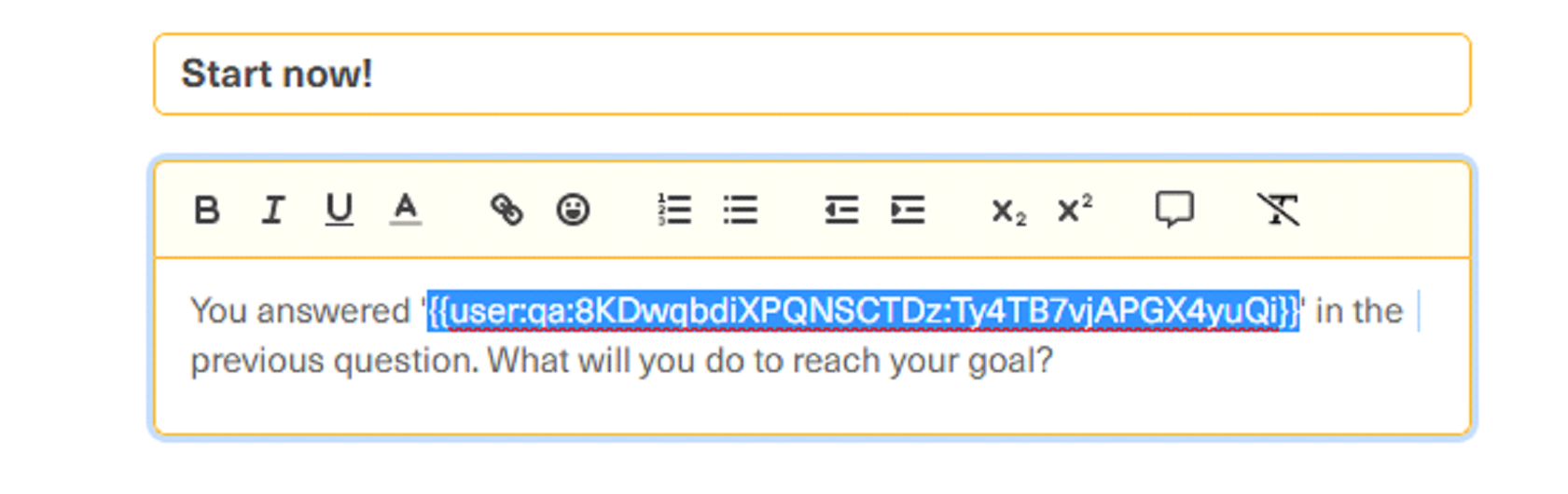
This will ensure that every learner who attempts these actions, see his/her unique response from the first action copied to the next action.
You're done!
What will the user see?
User answers the question and keying in the response in the text field.
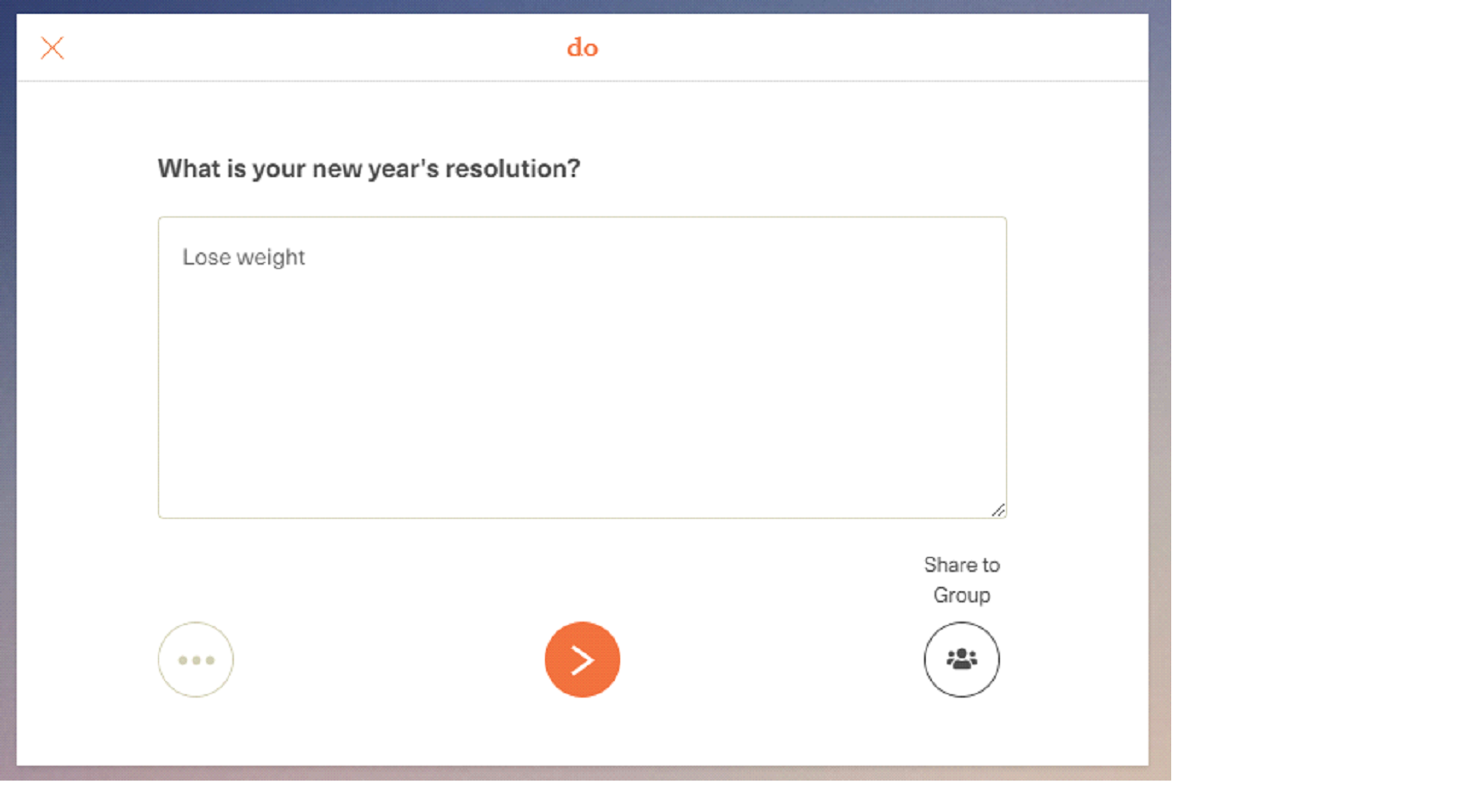
When the user goes to the action which is pulling the answer from the previous action, this is what it will look like.