Our Notes feature lets you highlight and save essential bits of information/content or record down any comments/thoughts/ideas you have throughout your learning journey.
Video Tutorial
How to use Notes on Gnowbe Web
- Highlight your selected word, phrase, or sentence, and click Add to notes.

- A pop-up will appear once your note is added - click See Notes to review your notes.
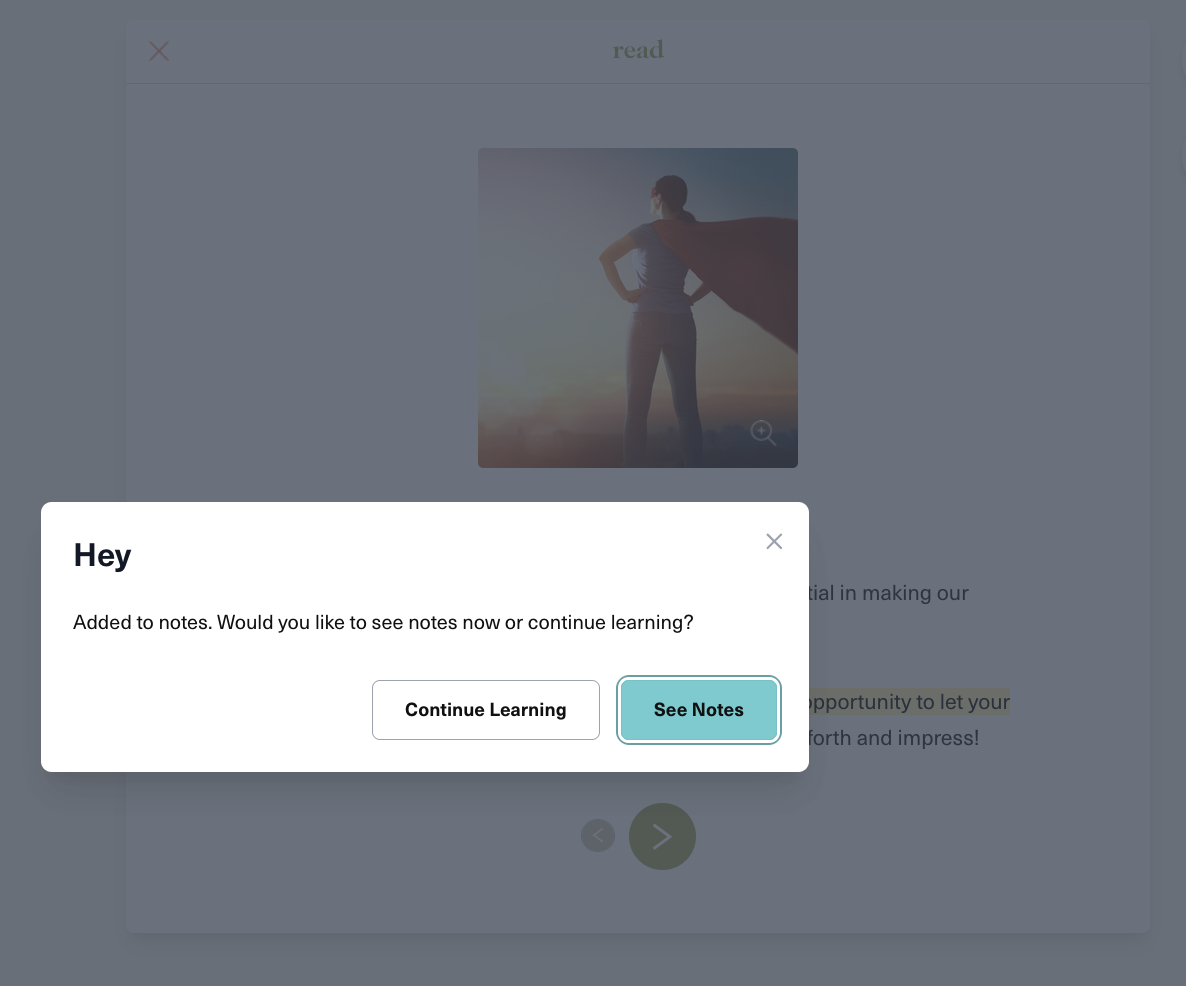
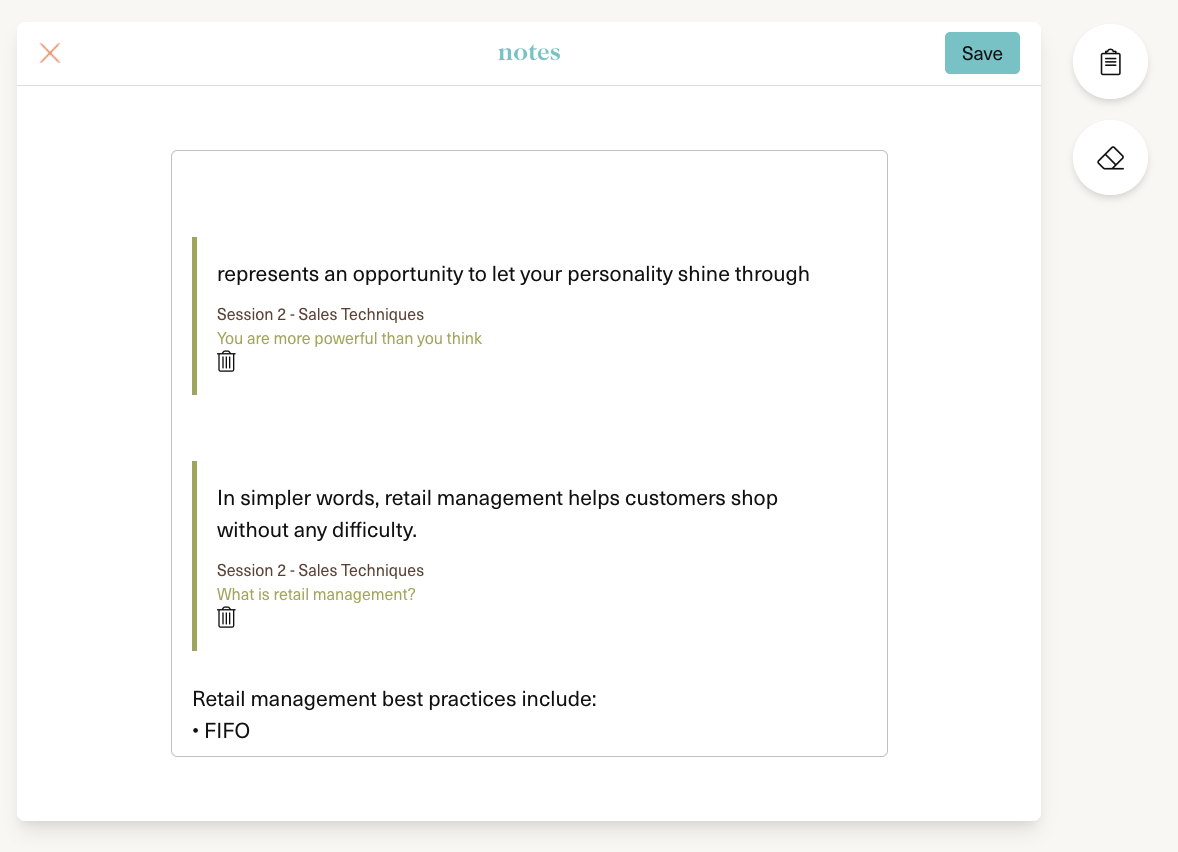
- You will enter your Notes board. Here, you will be able to view a compilation of all your saved notes or record down your own notes. Click the trash icon to delete notes whenever you like.
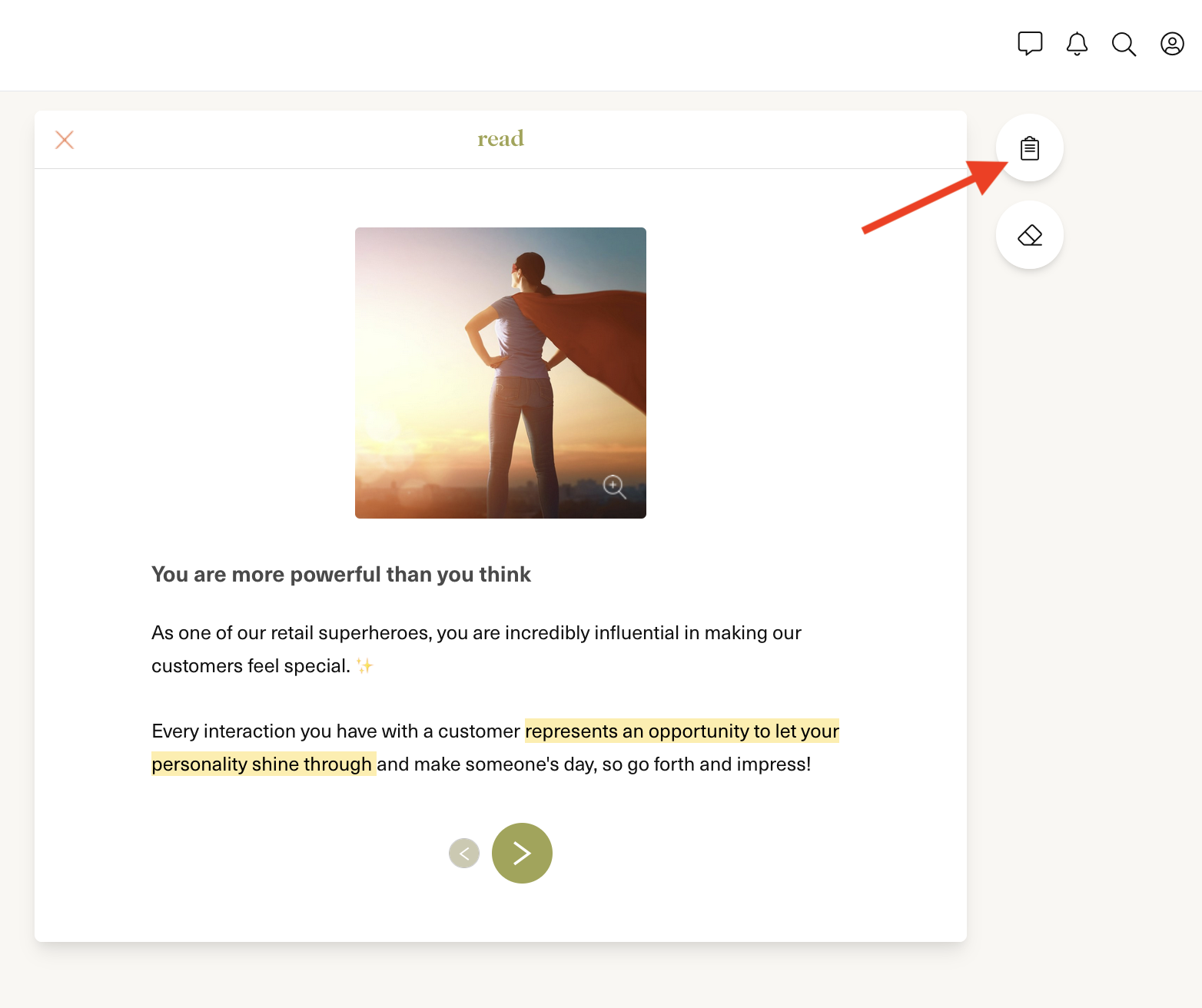
- Click the Notes button on the top right corner of your screen to revisit your notes.
How to use Notes on Gnowbe App
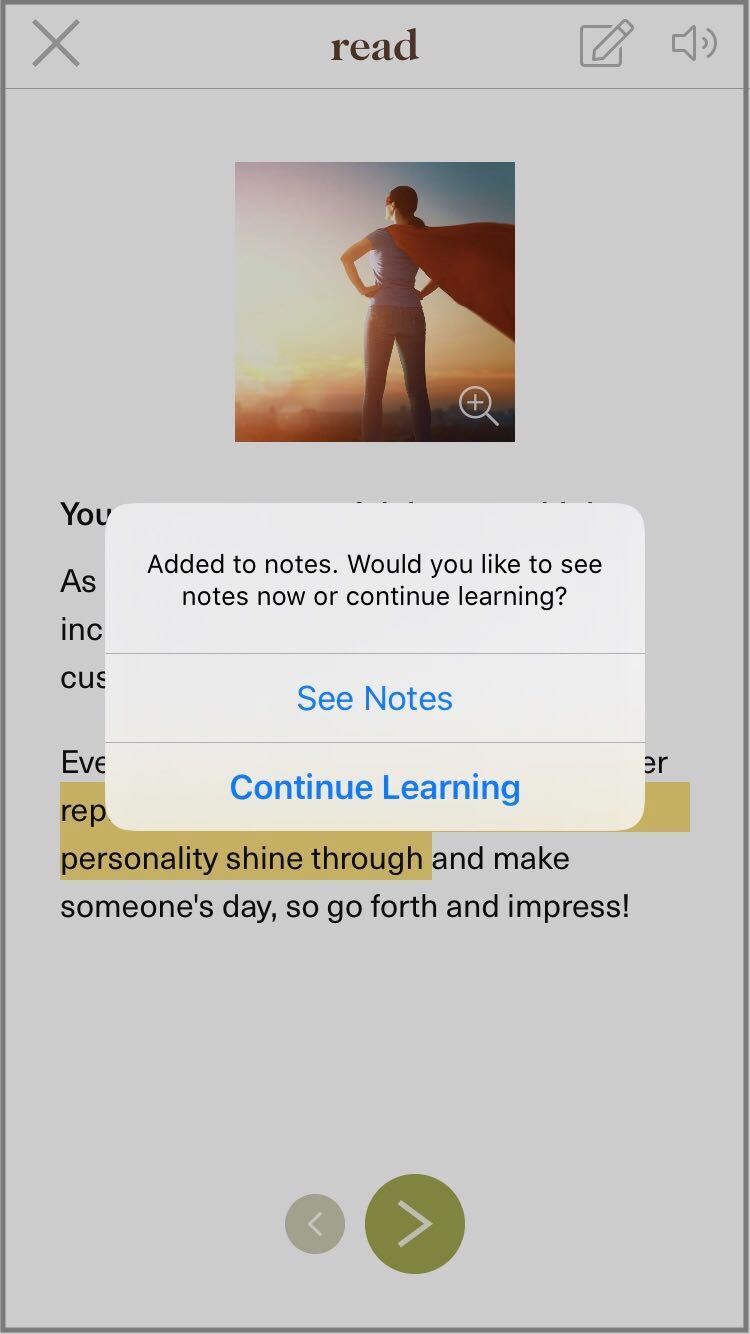
- Hold and highlight your selected word, phrase, or sentence. Then, tap Add to Notes.

- Tap See Notes to review your notes.
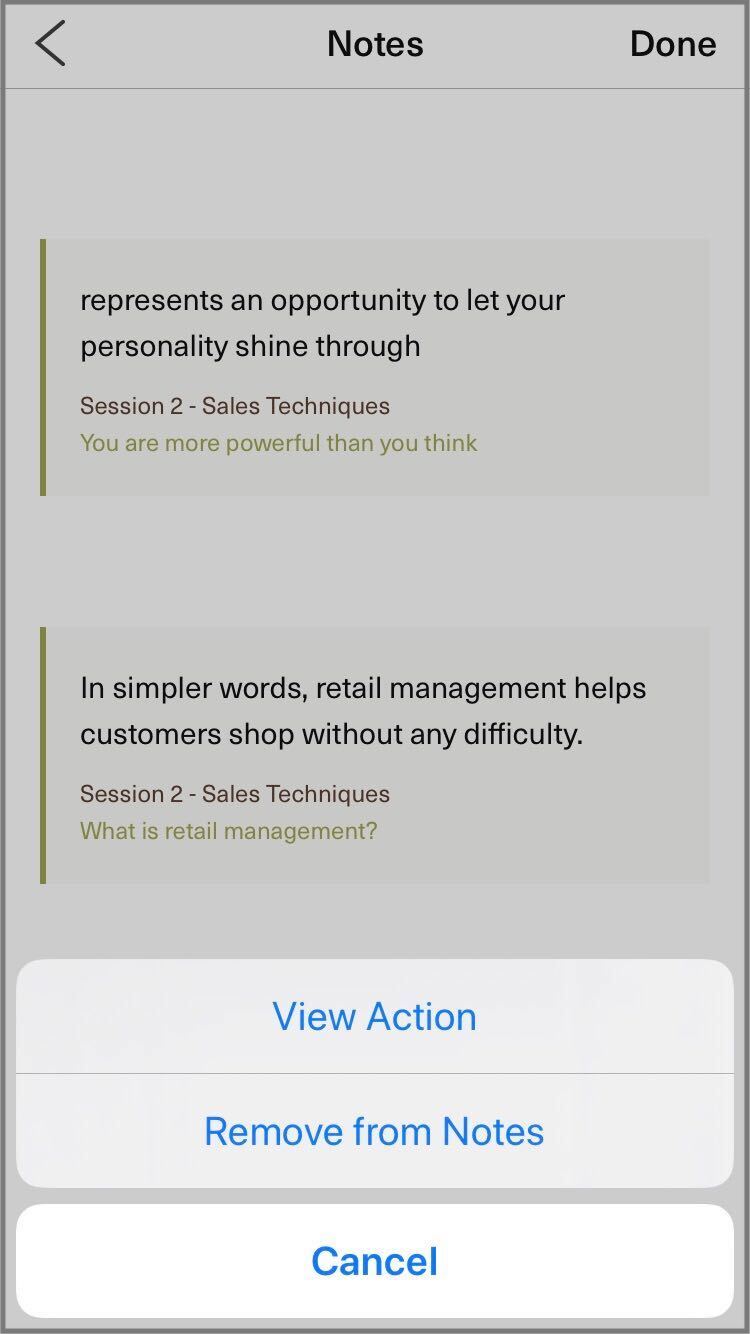
- On the Notes board, you will be able to view a compilation of all your saved notes or record down your own notes.

- Tap and hold a note to View Action or delete the note.
- Revisit your notes by tapping the Notes button on your Session page.